
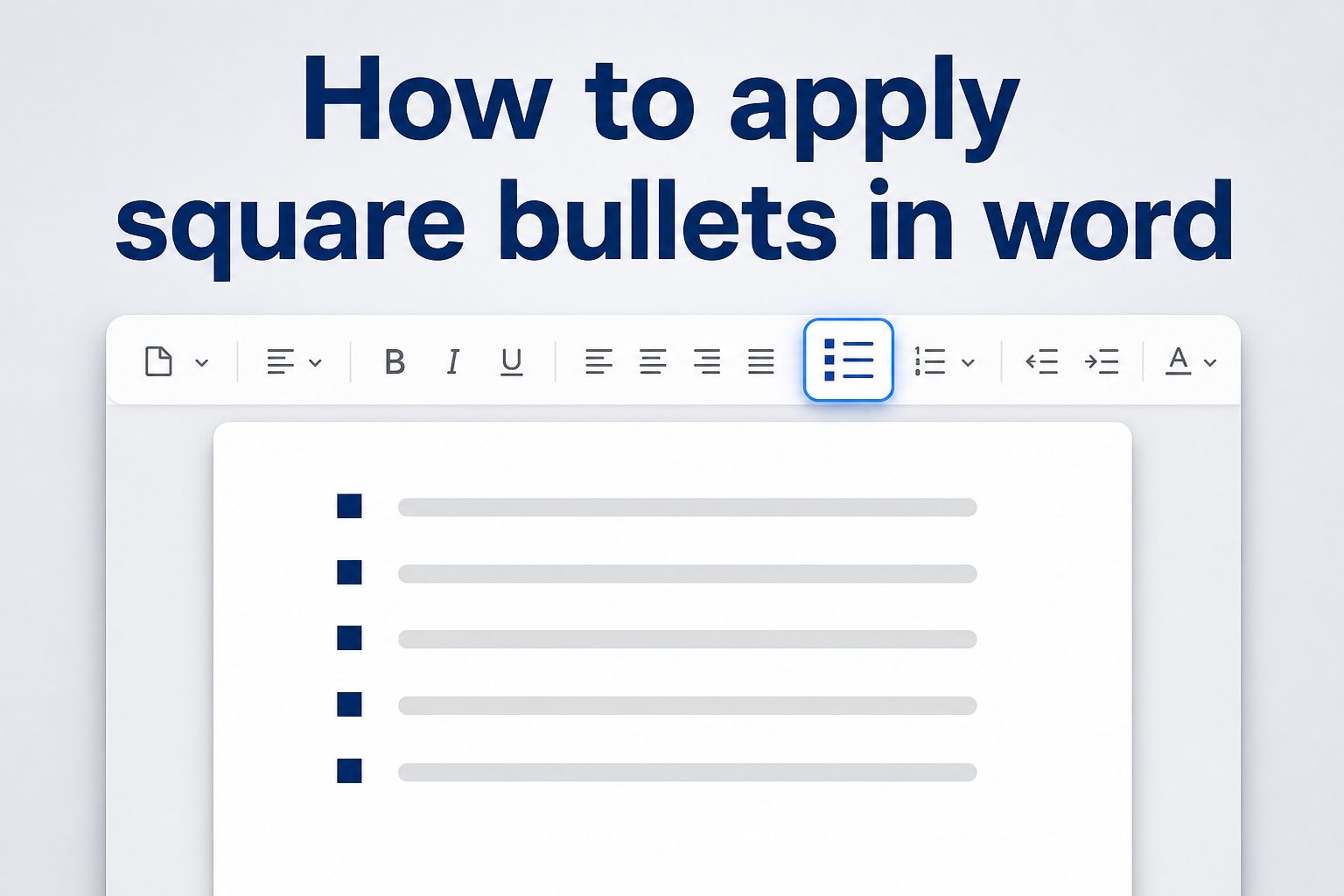
Knowing how to apply square bullets in Word is useful when you want a document to look cleaner, more structured, and more professional than a basic round-bullet list. Square bullets are often used in reports, checklists, resumes, meeting notes, training documents, classroom handouts, and business proposals because they give lists a firm, organized appearance. Microsoft Word makes it fairly easy to change standard bullets into square bullets, but the exact steps can vary depending on whether you use the ribbon menu, the bullet library, symbol options, or a custom style. In this guide, you will learn what square bullets are, why they matter, how they work in Word, how to apply them step by step, how to customize them, and how to avoid common formatting problems. You will also find practical examples, best practices, expert tips, and answers to common questions.
What Square Bullets Mean In Word
Square bullets are list markers shaped like small squares instead of the default round dots. In Microsoft Word, bullets are formatting symbols that appear before each item in a list. They help separate ideas, steps, features, tasks, or points so the reader can scan the document more easily.
A square bullet works the same way as any other bullet style. It does not change the meaning of the text, but it changes the visual tone of the list. Round bullets often feel general and casual, while square bullets can feel more structured, technical, or formal. This is why square bullets are common in business documents, policy notes, project plans, and professional checklists.
In Word, square bullets can come from the default bullet library, the Symbol menu, or a custom bullet format. You can also save them as part of a paragraph style so the same bullet design appears consistently across a long document.
Why Use Square Bullets In Microsoft Word
Square bullets are not just a decorative choice. They can improve how a document looks and how easily readers move through information. When a page contains several lists, choosing the right bullet style helps create a clear hierarchy and keeps the formatting from feeling random.
- Cleaner Visual Structure: Square bullets create strong alignment and make list items look neat, especially in formal documents.
- Professional Appearance: They are useful for reports, proposals, resumes, and internal documents where presentation matters.
- Better Scannability: A clear bullet shape helps readers quickly identify separate points without reading every line closely.
- Useful Emphasis: Square bullets can make important lists stand out from regular round-bullet lists.
- Consistent Formatting: When used with Word styles, square bullets help maintain a uniform look across sections.
- Flexible Design: You can adjust the bullet size, indentation, color, and spacing to match the document style.
How Square Bullets Work In Word
Microsoft Word treats bullets as paragraph formatting. This means the bullet belongs to the paragraph, not to a single typed character at the start of the line. When you press Enter after a bulleted item, Word automatically creates the next bullet using the same formatting.
Square bullets are usually selected from a bullet library or inserted from a symbol font. Word then applies that symbol as the marker for each paragraph in the list. The text remains editable, and the bullet can be changed later without rewriting the list.
Bullet Symbols And Fonts
Some bullet shapes in Word come from fonts such as Symbol, Wingdings, or standard Unicode character sets. A square bullet may look slightly different depending on the font used. One square may be filled, another may be hollow, and another may appear heavier or lighter. This is why documents sometimes show different bullet shapes after being opened on another computer.
Indentation And Alignment
Word controls bullet placement through indentation. The bullet has its own position, and the text begins at a separate text indent. If the bullet looks too far from the text or too close to the margin, the issue is usually related to list indentation settings rather than the bullet symbol itself.
How To Apply Square Bullets In Word
The fastest way to apply square bullets in Word is through the Bullets menu on the Home tab. This method works well when you need a simple square bullet list and do not need advanced customization.
-
- Select the text you want to turn into a bulleted list, or place your cursor where you want the list to begin.
- Go to the Home tab on the Word ribbon.
- Find the Paragraph group.
- Click the small arrow next to the Bullets button.
- Look through the Bullet Library for a square bullet option.
- Click the square bullet style to apply it.
- Type your list items, pressing Enter after each item.
- Press Enter twice when you want to stop creating bullet points.
If you do not see a square bullet in the first menu, choose Define New Bullet. From there, you can select a square symbol manually and add it to your bullet options. Once selected, Word usually remembers recently used bullet styles, making it easier to reuse the square bullet later.
How To Create A Custom Square Bullet
Sometimes the default bullet library does not show the square style you want. Word gives you a custom bullet option so you can choose a specific square symbol, adjust its appearance, and apply it to your list.
Use The Define New Bullet Option
To create a custom square bullet, open the Bullets menu and choose Define New Bullet. Select Symbol, then browse for a square character. Common options include a filled square, hollow square, small black square, or outlined box. After selecting the symbol, confirm the choice and Word will apply it to your list.
Choose A Readable Square Style
The best square bullet is clear without being distracting. A very heavy square may overpower short list items, while a very tiny square may disappear when printed. For most documents, a small filled square or medium hollow square works well because it is visible but not visually aggressive.
Adjust Font And Color Carefully
Word allows you to format the bullet separately from the list text. You can change the bullet color, size, and font. This is useful for branded documents, but it should be done with restraint. A black, gray, or brand-colored square usually looks better than a bright color that pulls attention away from the content.
Examples Of Square Bullet Lists
Square bullets work best when the list contains related items of similar importance. They are especially helpful for concise lists where each point needs to be easy to scan.
Business Report Example:
- Revenue Growth: Sales increased steadily across the second quarter.
- Customer Retention: Repeat purchases improved after the support workflow changed.
- Operational Costs: Expenses remained stable despite higher order volume.
- Project Timeline: Delivery remains on schedule with no major blockers.
- Next Review: The team will review final results at the monthly meeting.
Resume Example:
- Managed Reports: Prepared weekly performance reports for department leadership.
- Improved Workflow: Reduced manual tracking by introducing a shared document process.
- Supported Clients: Coordinated communication between internal teams and external accounts.
- Trained Staff: Helped new employees learn document standards and reporting tools.
- Maintained Accuracy: Reviewed data entries and corrected formatting inconsistencies.
Best Documents For Square Bullets
Square bullets are flexible, but they are especially effective in documents where order, clarity, and professionalism matter. They can make plain information feel more deliberate without requiring complex design work.
- Reports: Use square bullets for findings, recommendations, risks, or summary points.
- Resumes: Use them for achievements, responsibilities, and skills when the layout supports a clean style.
- Meeting Notes: Use square bullets to separate decisions, action items, and follow-up tasks.
- Checklists: Use hollow square bullets when the list is meant to be reviewed or marked later.
- Training Materials: Use square bullets for key reminders, procedures, and learning objectives.
- Proposals: Use them to present deliverables, benefits, timelines, and requirements.
Square Bullets Versus Other Bullet Styles
Different bullet styles create different impressions. A round bullet is neutral and familiar, so it works for most everyday lists. A square bullet feels slightly stronger and more structured. A checkmark bullet suggests completion or approval. A dash can feel light and informal.
Use square bullets when you want the list to look organized and intentional. Avoid using too many different bullet styles in the same document, because that can make the formatting look inconsistent. A good rule is to choose one main bullet style for standard lists and reserve other symbols for special purposes.
Filled Square Bullets
Filled square bullets are bold and easy to see. They work well for short lists, important notes, and professional summaries. However, they can look heavy if the list is long or if the font size is small. In dense documents, consider using a smaller square or a softer color.
Hollow Square Bullets
Hollow square bullets are lighter and often resemble checkbox-style markers. They are useful for checklists, planning documents, worksheets, and review forms. They can also make a list feel interactive, even if the document is only printed or shared as a PDF.
How To Format Square Bullet Indents
Applying square bullets is only part of the job. A list looks polished when the bullet, text, and line spacing are aligned properly. Poor indentation can make even the right bullet style look messy.
To adjust indentation, right-click a bullet in the list and choose Adjust List Indents. You can then control the bullet position and the text indent. The bullet position decides where the square appears, while the text indent decides where the words begin. The goal is to leave enough space between the square and the text without making the list look stretched.
For most standard documents, keep the bullet near the left margin and align wrapped lines with the first line of text, not with the bullet. This makes longer list items easier to read because the text forms a clean vertical edge.
How To Use Square Bullets With Styles
If you are working on a long document, applying square bullets manually every time can become inconsistent. Word styles help solve this by saving bullet formatting, spacing, indentation, and font choices together.
Create or modify a paragraph style for your square bullet list. Apply the bullet style, adjust spacing, set the indentation, and then update the style to match the selected text. After that, you can apply the same formatting anywhere in the document with one click.
Styles are especially useful for documents that will be edited by several people. Instead of relying on everyone to choose the same bullet manually, the document style keeps the formatting consistent. This also helps when creating templates for reports, policies, manuals, and recurring meeting documents.
Practical Use Cases For Square Bullets
Square bullets can be used in many everyday Word documents. The best use case depends on the purpose of the list and the tone of the document.
Project Plans: Square bullets can organize deliverables, milestones, dependencies, and risks. They give the plan a structured appearance without needing a table for every detail.
Office Documents: In workplace memos, square bullets help separate key points, decisions, and action items. They are formal enough for business communication but still simple to read.
Classroom Handouts: Teachers can use square bullets for learning goals, supply lists, instructions, and review points. Hollow squares can also work well for student checklists.
Personal Planning: Square bullets are useful for to-do lists, event planning notes, packing lists, and household checklists. They make a simple document feel more organized.
Professional Resumes: Some resume layouts look sharper with square bullets than with round bullets. The key is to keep them small, consistent, and aligned with the overall design.
Common Mistakes With Square Bullets
Square bullets are easy to apply, but small formatting mistakes can make a document look less polished. Most issues come from inconsistent symbols, poor spacing, or overuse.
- Using Too Many Bullet Styles: Mixing squares, circles, arrows, and checkmarks can make the document feel cluttered. Choose one primary style.
- Making Bullets Too Large: Oversized square bullets distract from the list text. Keep the marker proportional to the font size.
- Ignoring Indentation: If wrapped lines do not align correctly, the list becomes harder to read. Adjust list indents when needed.
- Choosing Decorative Symbols: Fancy square-like symbols may not print well or may not display correctly on other devices.
- Overusing Bold Text: Bold labels can help, but bolding too much of every list item reduces contrast and readability.
- Forgetting Consistency: Lists in the same section should use the same bullet size, spacing, and alignment unless there is a clear reason to change.
Best Practices For Professional Square Bullet Lists
A professional square bullet list should be easy to read before it is stylish. The marker should support the content, not compete with it. Before finalizing a document, scan every list and ask whether the bullet style improves clarity.
- Keep List Items Parallel: Start each item in a similar grammatical pattern when possible.
- Use Short Items When You Can: Bullets are best for scannable points, not long paragraphs disguised as lists.
- Limit Nested Lists: Too many levels of bullets can make the page look complicated.
- Check Print Preview: Some square symbols look different on screen and in print.
- Use Styles For Repeated Formatting: Styles reduce inconsistency in longer documents.
- Match The Document Tone: Use simple square bullets for formal documents and lighter square bullets for casual materials.
Expert Tips For Better Results
For a cleaner result, set your square bullet formatting before building a long list. It is easier to type into a well-formatted list than to repair dozens of inconsistent bullets afterward. This is especially true when copying content from emails, PDFs, web pages, or older Word files.
If your bullets change unexpectedly, use Word’s formatting tools carefully. The Format Painter can copy bullet formatting from a correct list to another list. Clear Formatting can remove unwanted styles, but use it only when you are ready to rebuild the paragraph formatting.
When sharing the document, consider saving a final copy as a PDF if layout consistency matters. A Word file can display slightly differently depending on fonts, Word version, or device settings. A PDF helps preserve the appearance of square bullets, spacing, and alignment.
Square Bullet Preparation Checklist
Before you finish a document that uses square bullets, review the list formatting from top to bottom. A quick check can prevent small issues from standing out later.
- Bullet Style Checked: Confirm that every related list uses the same square bullet symbol.
- Indentation Reviewed: Make sure bullets and wrapped lines align cleanly.
- Spacing Confirmed: Check that list items have enough breathing room without looking loose.
- Font Compatibility Checked: Use a symbol that displays properly on other devices.
- Print Preview Reviewed: Look at the final page view before printing or sending.
- Styles Applied: Use Word styles if the same square bullet format appears throughout the document.
Frequently Asked Questions
How Do I Apply Square Bullets In Word Quickly?
Select your list text, open the Home tab, click the arrow beside the Bullets button, and choose a square bullet from the Bullet Library. If you do not see one, select Define New Bullet, choose Symbol, and pick a square character that fits your document.
Why Can I Not Find Square Bullets In The Bullet Library?
Word shows recently used and default bullet styles, so a square option may not always appear at first. Use Define New Bullet to open the Symbol menu. After you select a square bullet once, Word may show it in your recent bullet options for easier reuse.
Can I Change The Color Of Square Bullets?
Yes, Word lets you change bullet color through the bullet formatting options. You can select the bullet and adjust its font color. For professional documents, use black, gray, or a restrained brand color so the bullet supports the text without becoming distracting.
Are Square Bullets Good For Resumes?
Square bullets can work well on resumes when they match the layout and remain small enough to look polished. They are best for modern, structured resume designs. Avoid oversized or decorative square bullets because they may distract from your experience and achievements.
How Do I Fix Square Bullet Indentation Problems?
Right-click the bulleted list and choose Adjust List Indents. Change the bullet position and text indent until the list lines up properly. Wrapped lines should usually align with the start of the text, not with the bullet symbol, for the cleanest appearance.
Can I Save Square Bullets As A Default Style?
Yes, you can create or update a Word style that includes square bullets, spacing, and indentation. This is useful for long documents or templates. Once the style is saved, you can apply the same square bullet formatting consistently throughout the document.
Do Square Bullets Work In Older Versions Of Word?
Square bullets work in most modern and older versions of Microsoft Word, although the exact menu names and symbol choices may vary. If a custom symbol does not display correctly, choose a simpler square from a common font or save the final version as a PDF.
Conclusion
Learning how to apply square bullets in Word gives you more control over the appearance and readability of your documents. Square bullets are useful for reports, resumes, checklists, meeting notes, classroom materials, and many other files where information needs to look organized and easy to scan.
The best results come from choosing a simple square symbol, keeping indentation consistent, using styles when formatting repeats, and checking the final layout before sharing. With a few careful adjustments, square bullets can make an ordinary Word list look cleaner, sharper, and more professional.